
Loquiz is a scavenger hunt product split across two surfaces. You design the game in a browser editor, and players join on Loquiz Player, which they install from the App Store or Play Store with a username and password, or by scanning a login QR. If work phones cannot download apps, this is not the right tool. If you want map pins with GPS radii, QR activation, and a Scratch-style editor for when tasks appear, Loquiz is built for that.
We built a small outdoor game and played it on a phone so you can see how the organizer screens connect to what players get.
Table of contents
- The dashboard
- Game creation and Config
- Task configuration
- Visual rules
- Playing on the phone
- Commonly asked questions
- Pricing
- If you need a no-download option
The dashboard
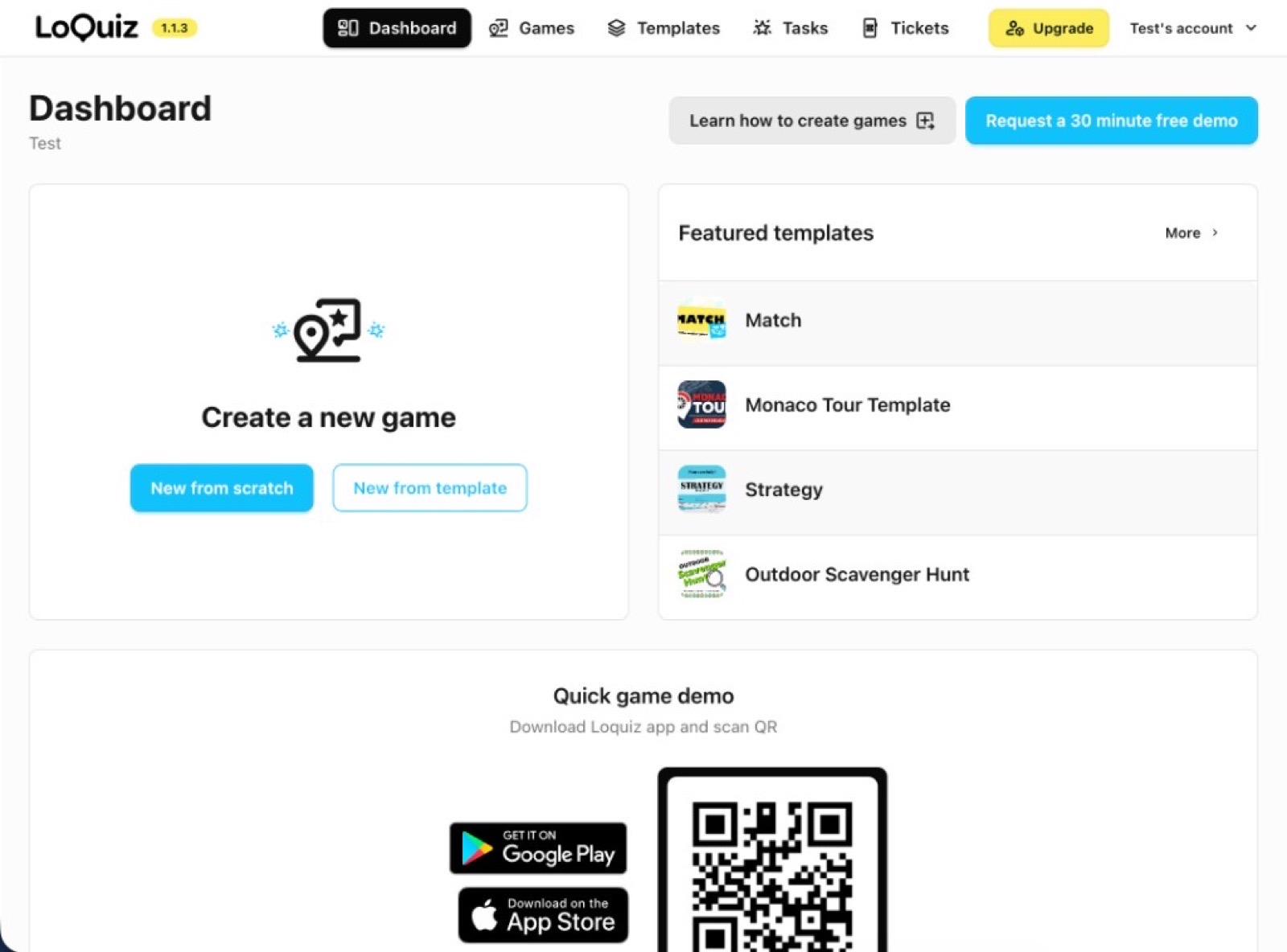
A new account opens on a dashboard where you can start from scratch or from a template. Match, a city tour, Strategy, and Outdoor Scavenger Hunt sit in Featured templates, and there is a 30-minute demo request if you would rather be walked through it. The top bar is the rest of the organizer account: Games, Templates, a Tasks library, and Tickets. At the bottom of the same page, Loquiz reminds you that players still need the native app, with store badges and a QR to download it.
Once a game exists, the editor is two workspaces. Creator is the map plus the block logic. Config is the organizer settings for that game: title, login, teams, map tiles, design, default task rules, and results. You will move between those two as you build.
Game creation and Config
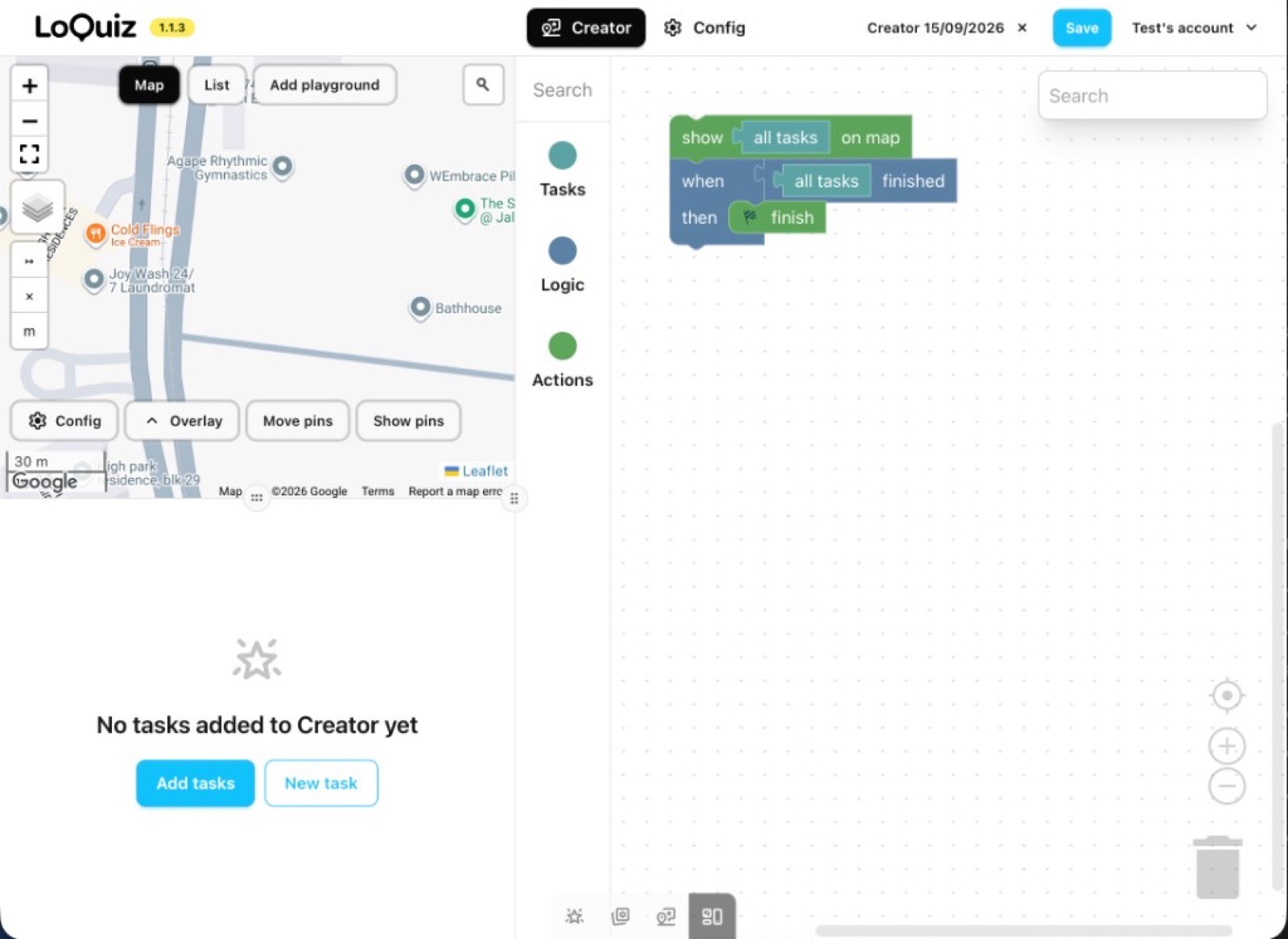
Creator starts as a Google map, an empty task list, and a default rule that shows all tasks on the map and finishes the game when they are done. Tasks you add later show as a numbered list with radius, points, and answer type, and you can duplicate one, drag the pin, or add a playground if you need an indoor or schematic layout instead of a street map.
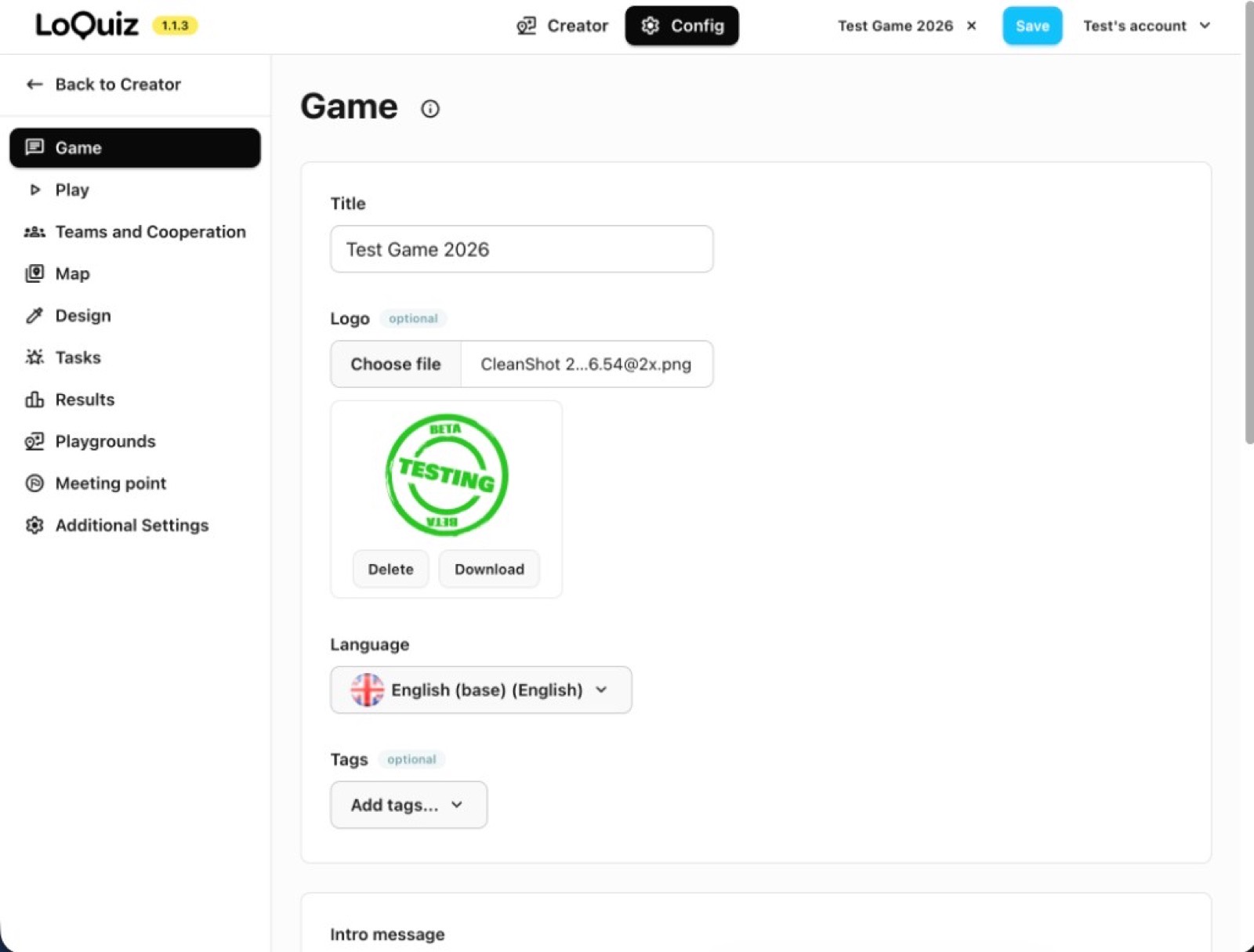
Config is the admin side of that same game. The left rail is Game, Play, Teams and Cooperation, Map, Design, Tasks, Results, Playgrounds, Meeting point, and Additional Settings. Play is where the game username, password, and login QR live, which is what players type into Loquiz Player on the day.
Game, teams, and timer
Config → Game is the cover of the event: title, optional logo, language, tags, the intro players see after they join, the finish message, and the timer. The timer can be a duration, for example 50 minutes, or a fixed end time.
Teams and Cooperation lets you cap how many teams can join. Player permissions are four checkboxes, all off by default: see all scores, see each other on the map, track player locations, and chatting. After login, players type a team name and optional member names. There is no pre-created team-code join on the screens we used, so if you need named teams before kickoff you either brief people to use an agreed name or you do that extra work on the day.
Map and design
Map controls the tiles players see, what appears on each pin, and whether tapping a pin opens a task.
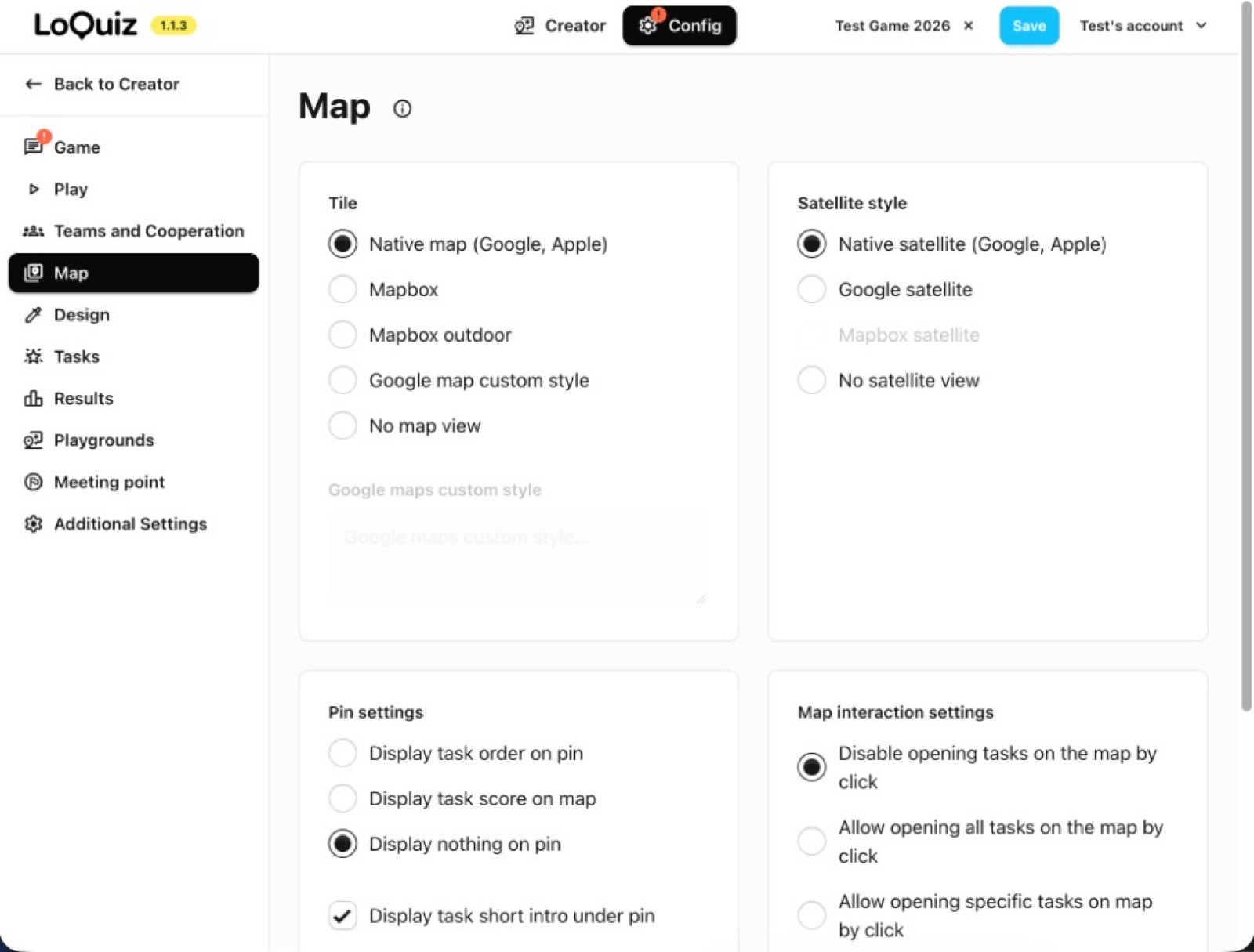
The map page is three decisions:
- Tiles: native map (Google or Apple), Mapbox, Mapbox outdoor, a custom Google style, or no map at all. Satellite can be native, Google, or off.
- Pin labels: order, score, or nothing, with an optional short intro under the pin.
- Map interaction: disable opening tasks by tapping a pin, allow all tasks, or allow only specific tasks. You can also hide my location, show my track, and allow navigation.
Design is branding plus a few switches that affect play. You can set a full-screen task background (max 10MB, resized to 1200px on the long side), primary and secondary colors, and whether the code scanner, game time, and score are visible. If any task uses QR activation, turn the scanner on here; the Activation tab says the same thing: Configuration → Design → Enable code scanner. Score can be delayed, or hidden after a set time.
Default task rules and the rest of Config
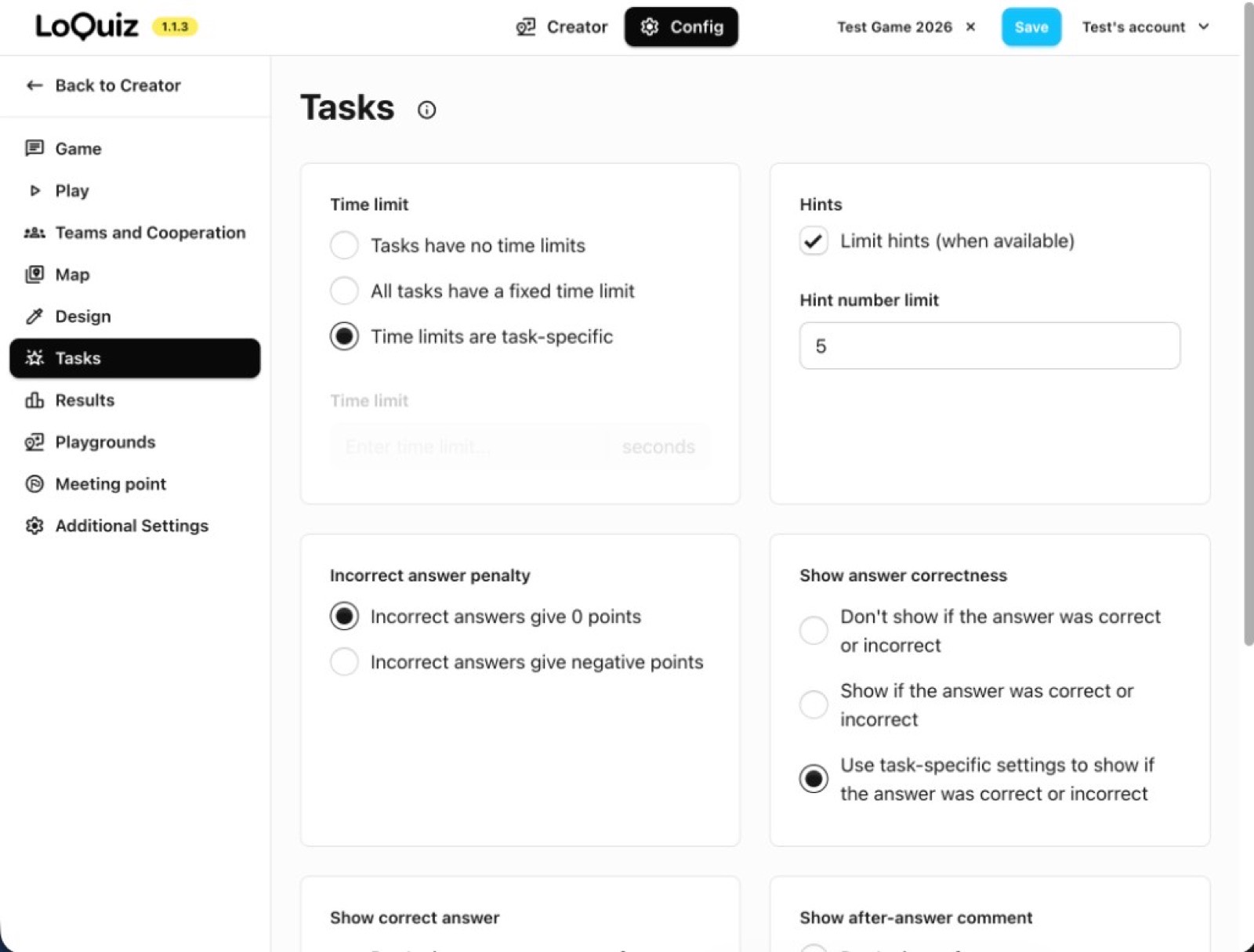
Config → Tasks sets defaults that an individual task can override: time limits (none, one limit for every task, or task-specific), a cap on hints, and whether a wrong answer is worth zero or negative points. Answer correctness, revealing the correct answer, and after-answer comments can be forced on, forced off, or left to each task.
The remaining Config pages are worth knowing, even if you leave them alone for a first outdoor hunt:
- Results. Public tabs you can leave on: About, Standings, Answers, Photowall, Map, Chat. Anyone with the link sees the tabs you tick.
- Playgrounds. Extra in-game screens with an uploaded background and their own pins, meant for indoor games or schematic maps. A game can have 1 to 5 playgrounds depending on the subscription.
- Meeting point. After the timer or the finish rule, the app can route people to a gathering spot with an arrival message.
- Additional Settings. Creator-only comments, a callback URL for an external results table, and a toggle to ask for app feedback.
Task configuration
New task has five tabs: Task, Comments, Media, Activation, and Settings, and Create task stays grey until the required fields on Task are filled.
Task text and answer type
Task text is a rich editor, and it is what players see when the task opens. Answer type sits under that. We used Multiple choices (one correct radio option, with an optional “all answers considered correct” for surveys) and Photo.
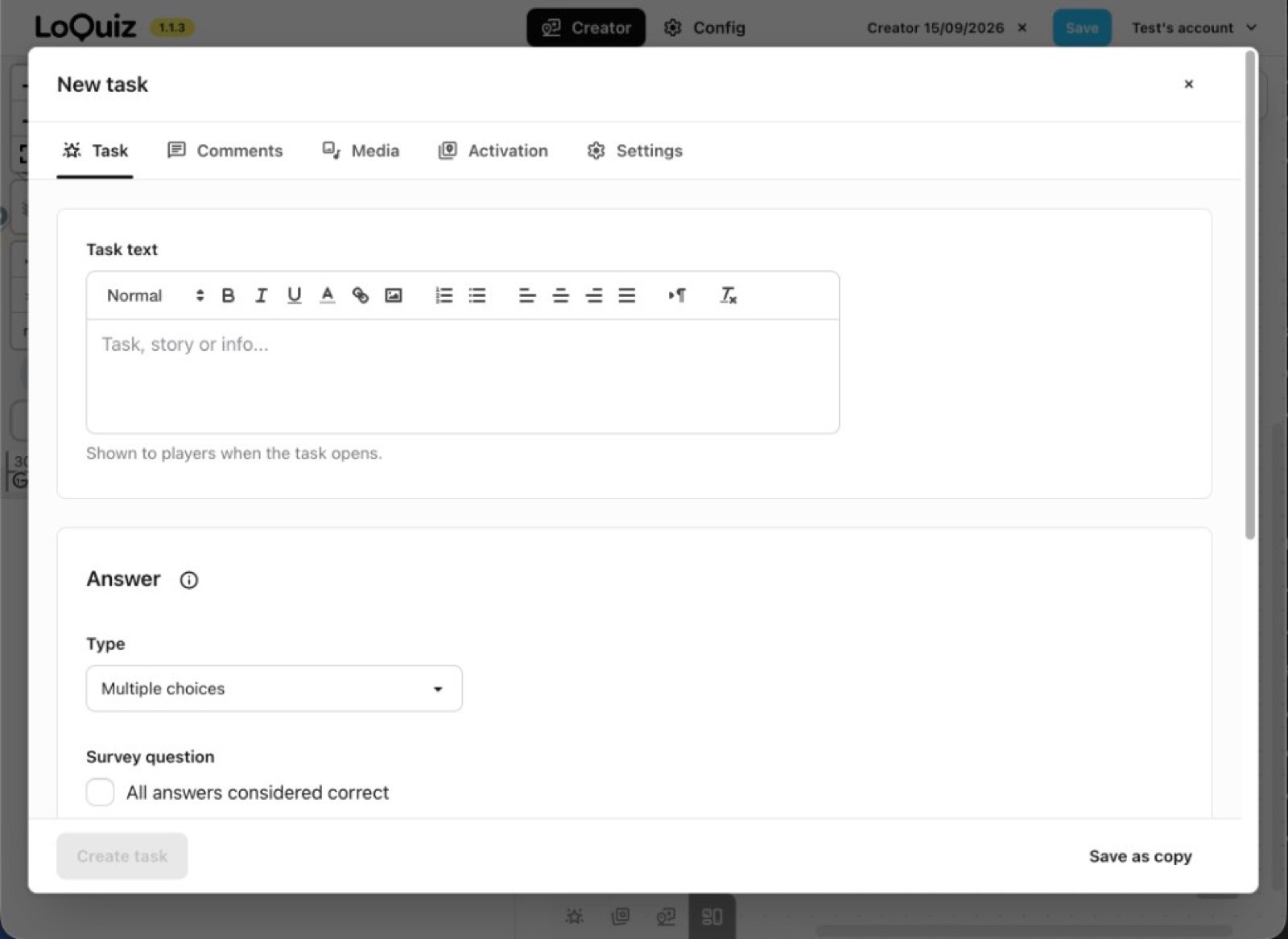
Loquiz documents these types. Monthly and annual plans list “main task types”; custom plans list “all task types,” so confirm the live dropdown on your account before you promise AR or object finder to a client.
- Multiple choices, multiple answers, text, number, no answer
- Photo, video (15-second cap), activity station, superpower
- Augmented photo, object finder
Photo and video are the types to read twice. A photo task is correct when a photo is taken. Skip is incorrect. There is no check that the photo matches the brief, which is what we saw on the phone as well.
Comments, media, and activation
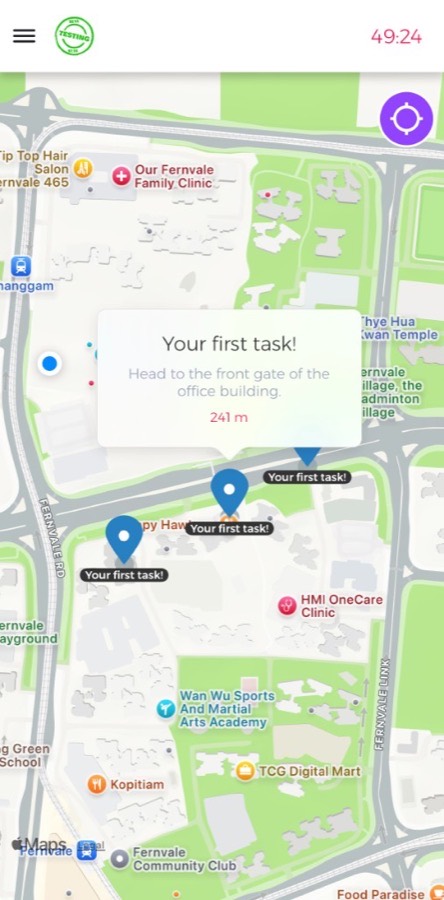
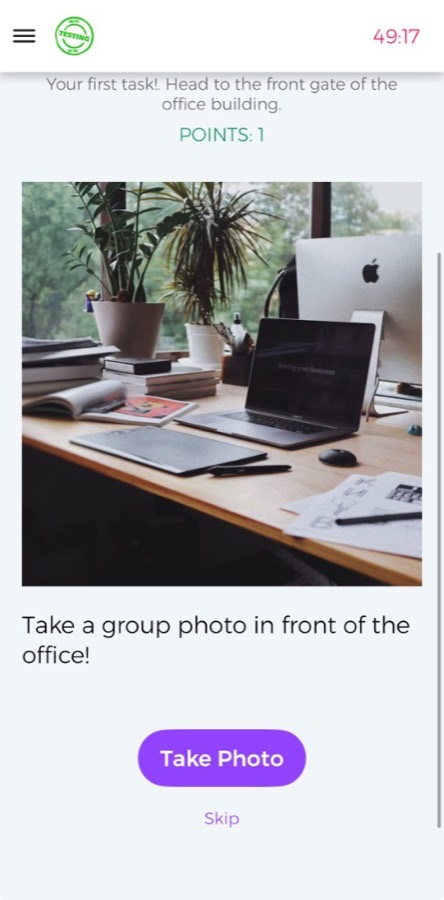
Comments is where the pin copy lives, and it is easy to mix the fields up. Short intro is the pin label and list title (“Your first task!”). Intro is the longer line on the pin (“Head to the front gate of the office building.”). Hint is optional and can be capped from Config → Tasks. After-answer comments can differ for a correct answer and an incorrect one.
Media is one image per task, JPG, PNG, or GIF; WebP is not supported, and players can zoom. You can also paste a YouTube or Vimeo link, upload MP3 audio (play, rewind, forward, 20MB cap), and set background audio that starts when the task opens. You can drop an image into the task text editor as well, though Loquiz’s help prefers the Media tab.
Activation is how the task actually opens. Location-specific tasks get a latitude, longitude, and radius in meters; we used 10m, which is the place the player has to reach before the task will open unless you also allow open-on-click.
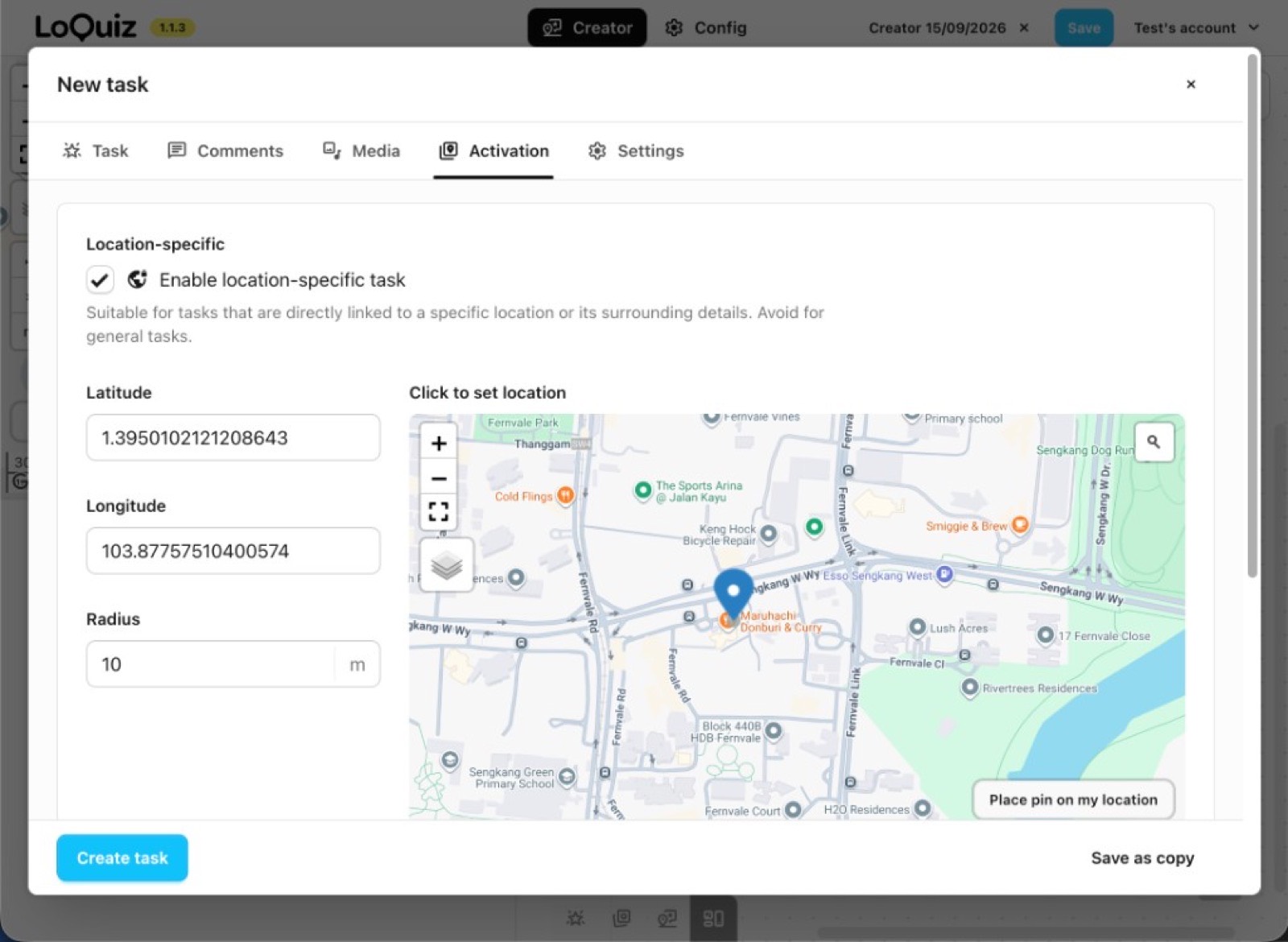
Open on click is its own checkbox, and Config → Map can override it for the whole game. Barcodes (EAN) are a separate activator. QR is generated per task: download a PNG, print it, and enable the in-app scanner under Design.
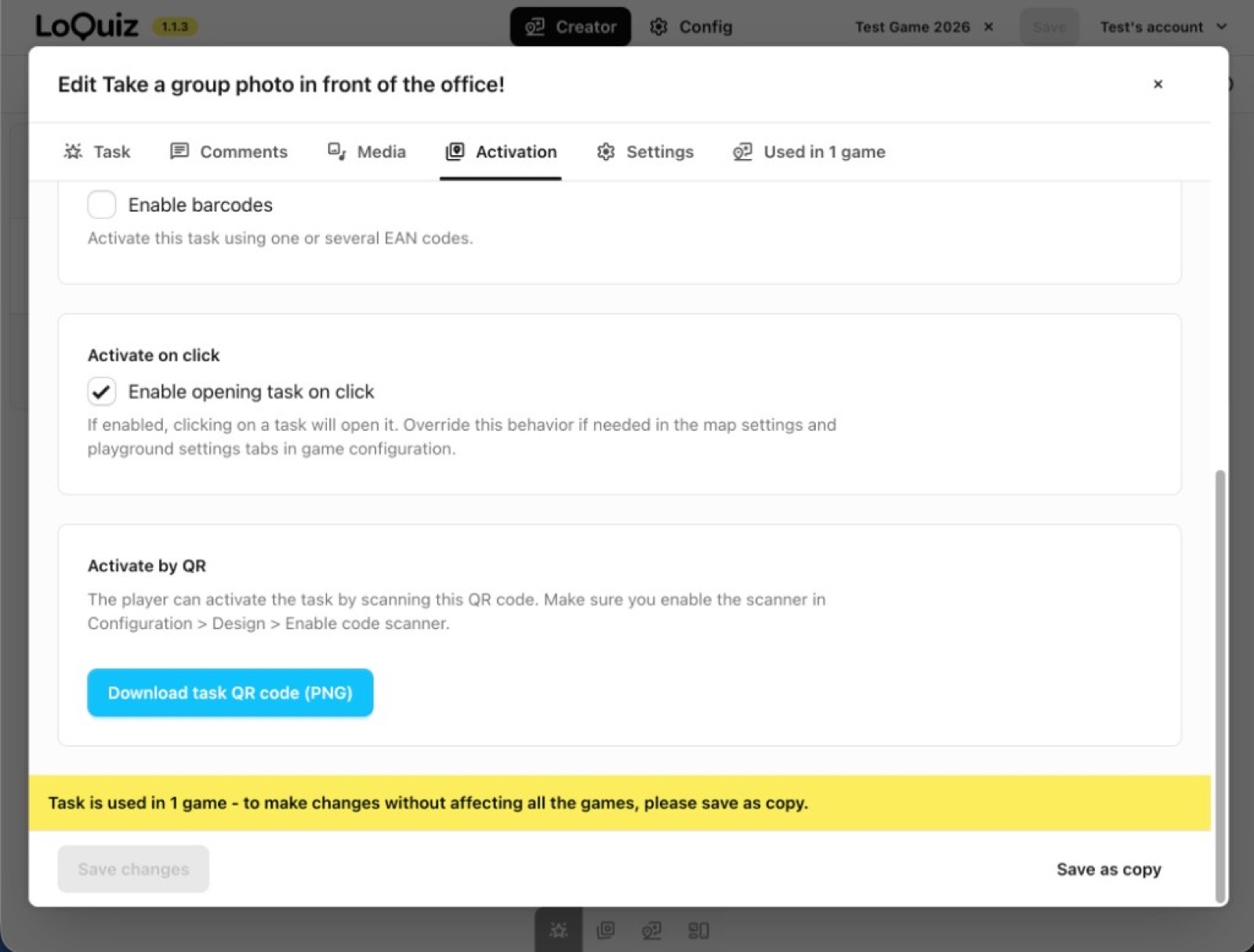
If a task is already used in a game, Loquiz warns you to Save as copy so edits do not leak into every game that shares that library item.
Settings
Settings is pin, timer, and what happens after an answer:
- Pin icon (presets or upload, longest side at least 200px, minimum 52px) and the area color around the pin
- Optional per-task time limit in seconds; the countdown starts when the task opens, and a timeout marks it incorrect. Speed bonus stays disabled until you have a time limit and positive points
- Keep or remove: remove when answered, keep until answered correctly, or keep until the end of the game. You can allow closing without answering, and set how long the location stays deactivated after a close or a wrong answer
- Language tags for filtering the task library. They do not translate the task. Instructor notes show under Answers in Results, not to players
Visual rules
This is the part most hunt apps do not have. The right side of Creator is a Scratch-style editor with Tasks, Logic, and Actions. The default game we got was simple: show all tasks on the map; when all tasks are finished, finish. You can replace that with sequences, timed unlocks, or “open task B only if task A was correct,” which is how Loquiz does an ordered hunt.
The pieces, grouped:
- Tasks: a single task, all tasks, a range, tasks with a tag, or a named task from the list
- Logic: when/then, finished, timer, scan QR, answer is correct (this team or any team), last answer, odometer after finished, timer after finished, score, date, and/or/not, on track, scan barcode
- Actions: show on map, show in list, open for answering, finish, deactivate
It is more flexible than a timed appear/disappear list, and it is also more for a designer who is willing to think in blocks.
Playing on the phone
Players install Loquiz Player, then log in with the username and password from Config → Play, or they scan the login QR. There is a Continue last session link if someone drops out mid-game.
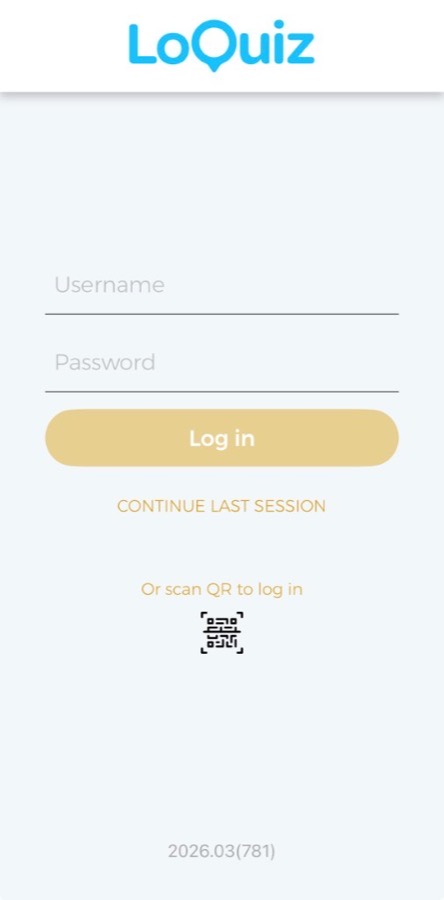
After login they type a team name, read the intro message, and land on the map. A countdown sits in the top-right if you set a game duration. Native maps look like Apple Maps or Google Maps depending on the device, and satellite view is a menu item rather than a second app.
Opening a photo task shows the Media image, the short intro, the task text, points, Take Photo, and Skip.
Take Photo opens the camera. We submitted a photo that did not match the brief, and the app accepted it, showed Done, and awarded the point. The menu holds Info, Score, Satellite View, Code scanner if you enabled it, High Contrast Mode, and Exit, with the team name and running score at the bottom. The scanner is also a button on the map, and it frames a printed task QR in green when you use QR activation.
Commonly asked questions
Do players have to install an app?
Yes. Loquiz Creator is the web editor, and Loquiz Player is the iOS and Android app. Loquiz’s pricing FAQ says organizers sometimes hand out tablets instead of asking guests to install.
Can you reject a bad photo before it scores?
Not in the flow we ran. Photo and video count as correct when the media is captured, and Skip is the incorrect path. Photos land on the Photowall in Results, so if you need someone to mark a photo right or wrong, plan to do that after the fact, or pick a different answer type.
Can a task require GPS and a photo?
Yes. Set the task as location-specific with a radius, and set the answer type to Photo. That is a real difference from apps that cannot force a location check before a photo mission.
Can tasks wait for other tasks?
Yes, in the block editor. You can show or open a task when another is finished, or when the answer was correct, which is how you get a required order rather than a pile of pins that are all live at once.
Can players message the facilitator?
Config can allow chatting between players. There is no facilitator inbox on the screens we used, so put a phone number in the intro if staff need a way to get help.
Does language tagging translate the game?
No. The setting is a library tag. Players still see the language you wrote.
Pricing
Checked on loquiz.com/pricing on 15 September 2026. Prices exclude VAT.
A “player” here is one activated device. One to ten people can look at that screen. Forty devices for one month is €9 + €9 × 40 = €369 before VAT. There is no published Saturday-only SKU. EDU is mentioned as a discounted package without euros on the main table.
Playgrounds (up to 5), custom pins, custom button colors, and full branding sit on the paid columns. The trial is enough to click through Creator. It is not enough to stage a 40-phone offsite.
If you need a no-download option
Loquiz is a strong fit for tourism operators and agencies who already live on a map, who want visual rules, and who can put an app on every phone, or hand out tablets. The block editor and location-gated photo tasks are the reasons to pick it.
It is a weaker fit when IT will not allow a store install, when you need photos judged before they score, or when you only need one afternoon and the monthly device math is bigger than the event.
PlayTours is the browser option in that last group. Players join from a link or QR, with nothing to install, and the free tier is 25 concurrent devices with a watermark, so you can test it fully with your organizing committee before paying for the full event. Photo tasks can be judged, including AI checks, instead of auto-scoring whatever the camera captured. See PlayTours pricing, the web vs native note, and why photo judging matters.
You can try PlayTours at admin.playtours.app. For a specific format, hello@playtours.app.