
The bell is in twelve minutes and the worksheet pile is still on the side desk. You wanted the class moving, not another sheet to mark tonight. In PlayTours that is a session with one QR on the board. Students open pyts.link, type the game code, and the hunt is in the browser they already have. Nothing to install.
These screens are from the built-in example called [TUTORIAL] Scavenger Hunt Example, session My First Session. The controls are the same ones you use for your own class.
Why run a QR code scavenger hunt
A class that has been sitting still will get up for a short trail around the room. The hunt is the lesson, broken into stops they can finish in one period. You skip the paper pack, and you skip the speech about downloading an app before anyone can start.
Before you start: what you need
The join code, not a separate QR app
PlayTours makes the code students scan. On the session page, under For Participants, method 1 is the game code. This session's code is LNTL. Students open https://pyts.link and type it. Method 2 is the QR for that same session, with a Download QR code button under it. Print that one large and put it on the board. You do not need a second website to draw the join code.
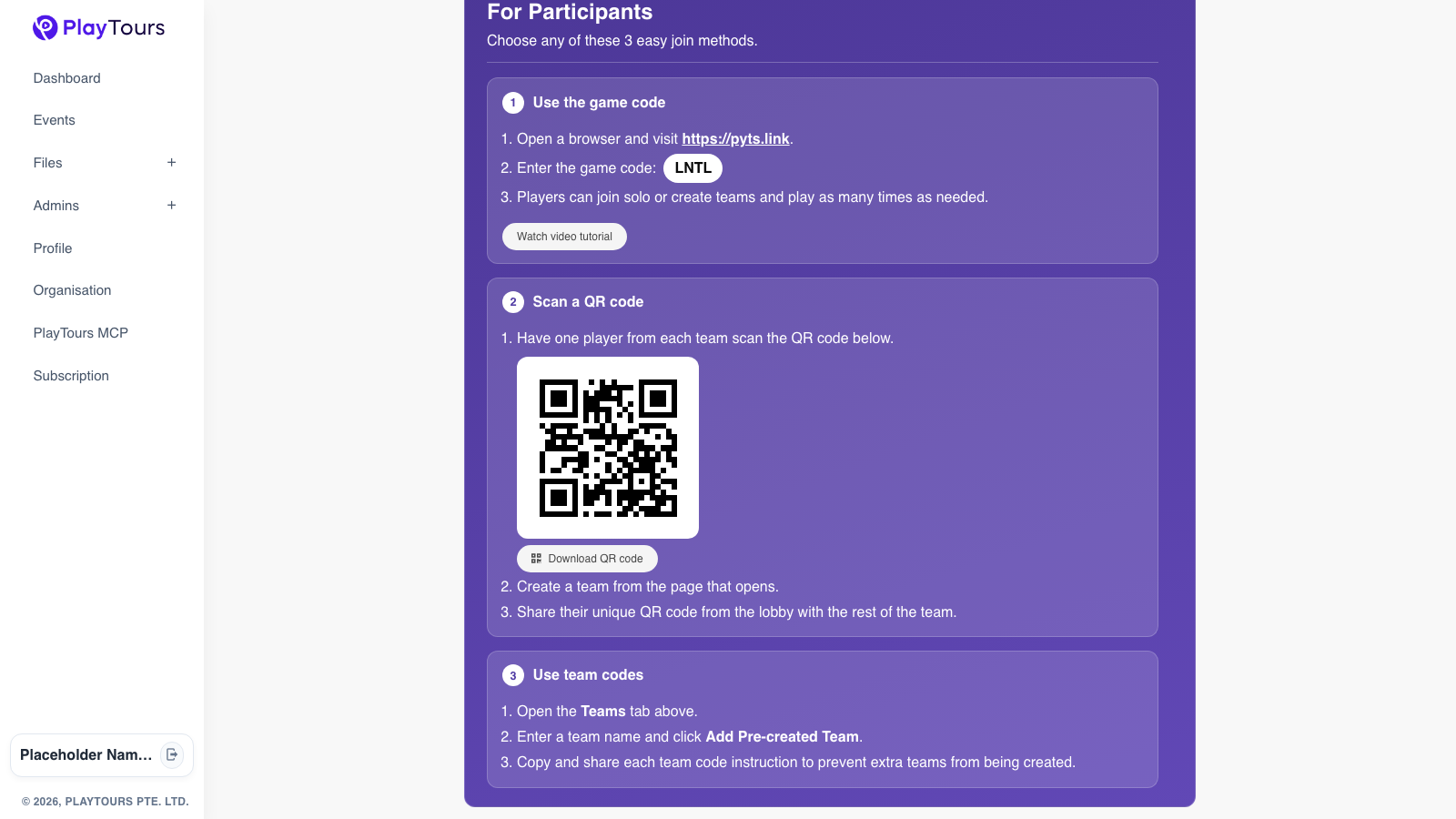
Method 3 is team codes. Open the Teams tab, type a team name, and click Add Pre-created Team if you already know who sits together. A student without a phone shares a partner's. One shared phone is one device.
How to build a QR code scavenger hunt, step by step
Step 1: Pick the learning objective
Name the subject and the age before you write a clue. One objective is enough for a period. "Find the right angle in the room and write the degrees" is a hunt. Covering the whole term is a worksheet with extra walking.
Step 2: Put the stops in a chapter
Open the event, choose Chapters, and open the chapter. In the sample, Chapter 2 is Let's Hunt! Station 2 is the classroom code: the tag says Qrbarcode. Station 1 is Location, which is the indoor check-in to skip. Points to complete chapter is 12, so a team can finish without every task. Raise it to the total of the task points if every stop has to be done.
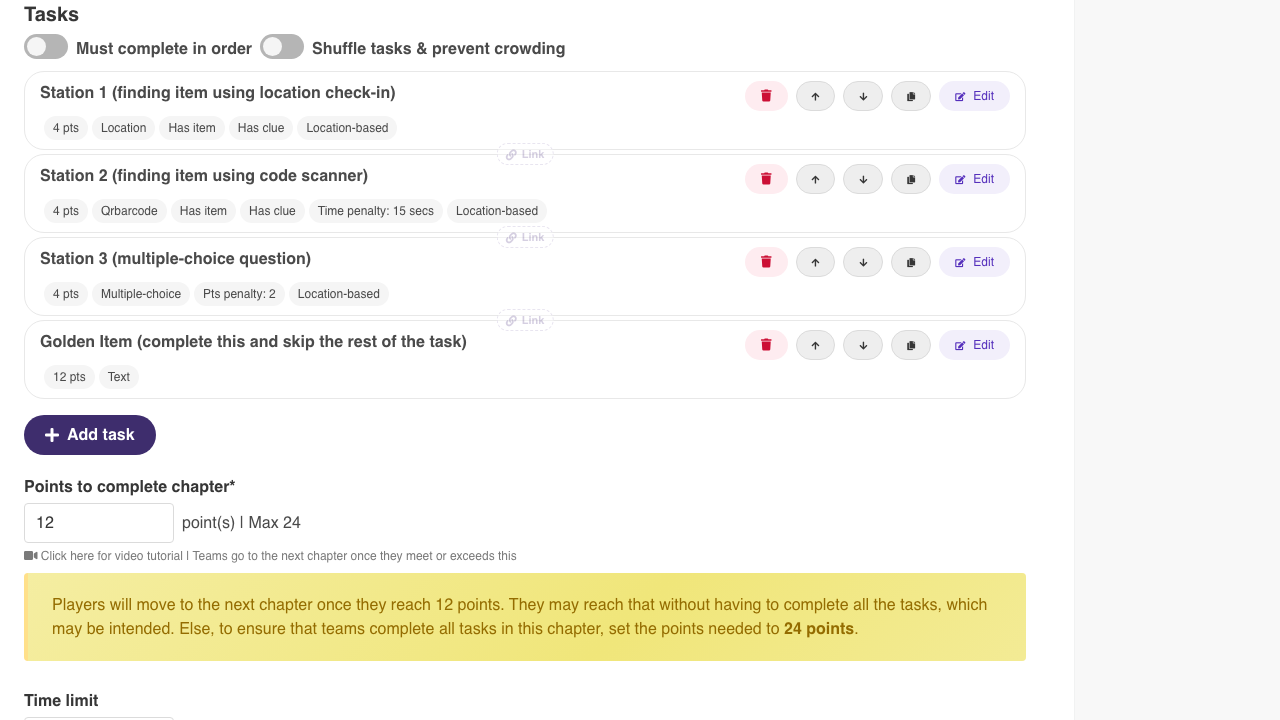
Five to eight stops fit a single period. If you cannot answer a clue while standing at the code, the class will not either.
Step 3: Generate the QR from the task
Click Edit on the Qrbarcode task. The Task Type field on this screen reads Qrbarcode. Under Accepted Answers, Value is the text the scan must match, and PlayTours draws that QR under the field. Use secure, time-sensitive QR code if the code should stop working after the lesson.
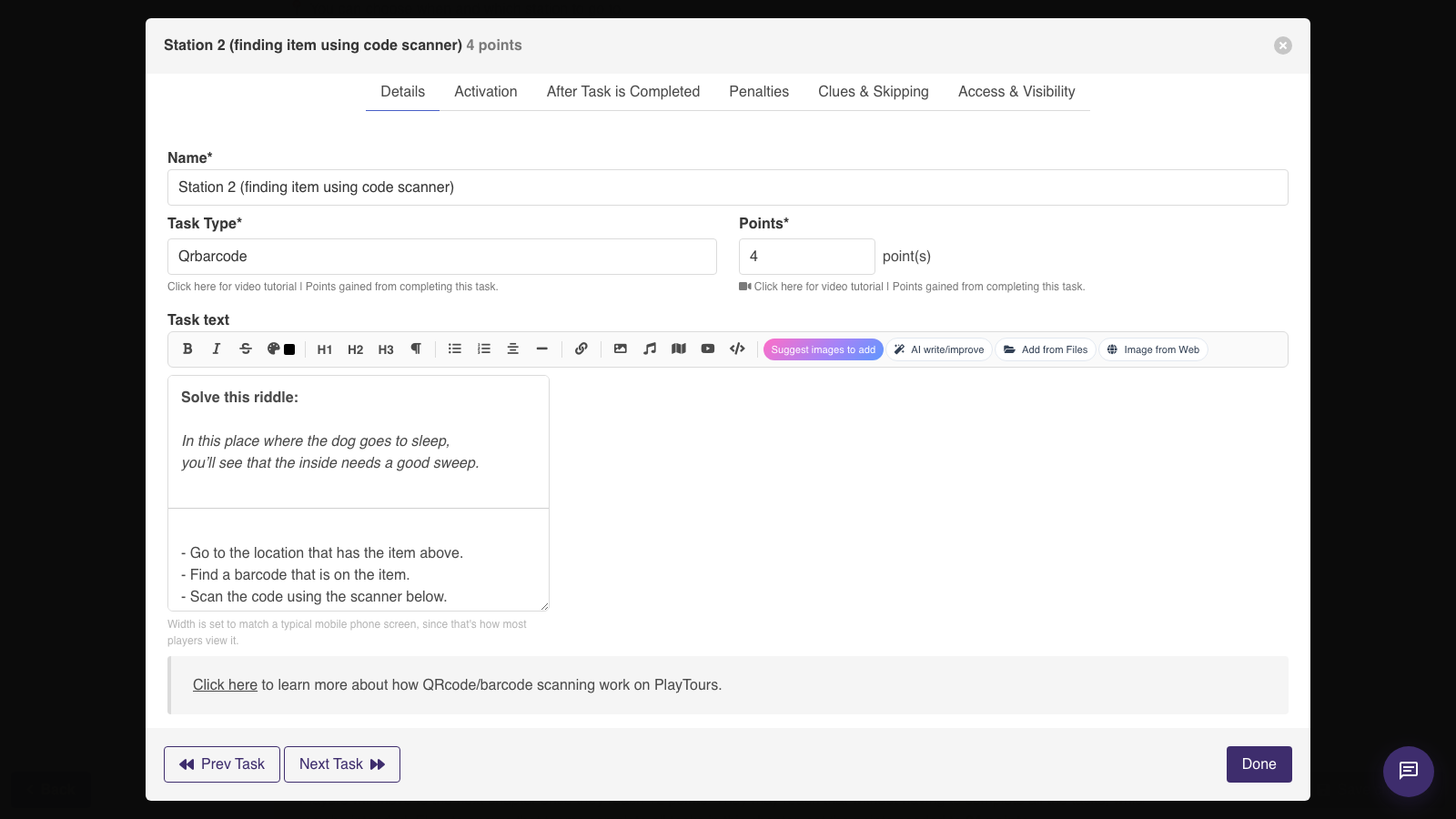
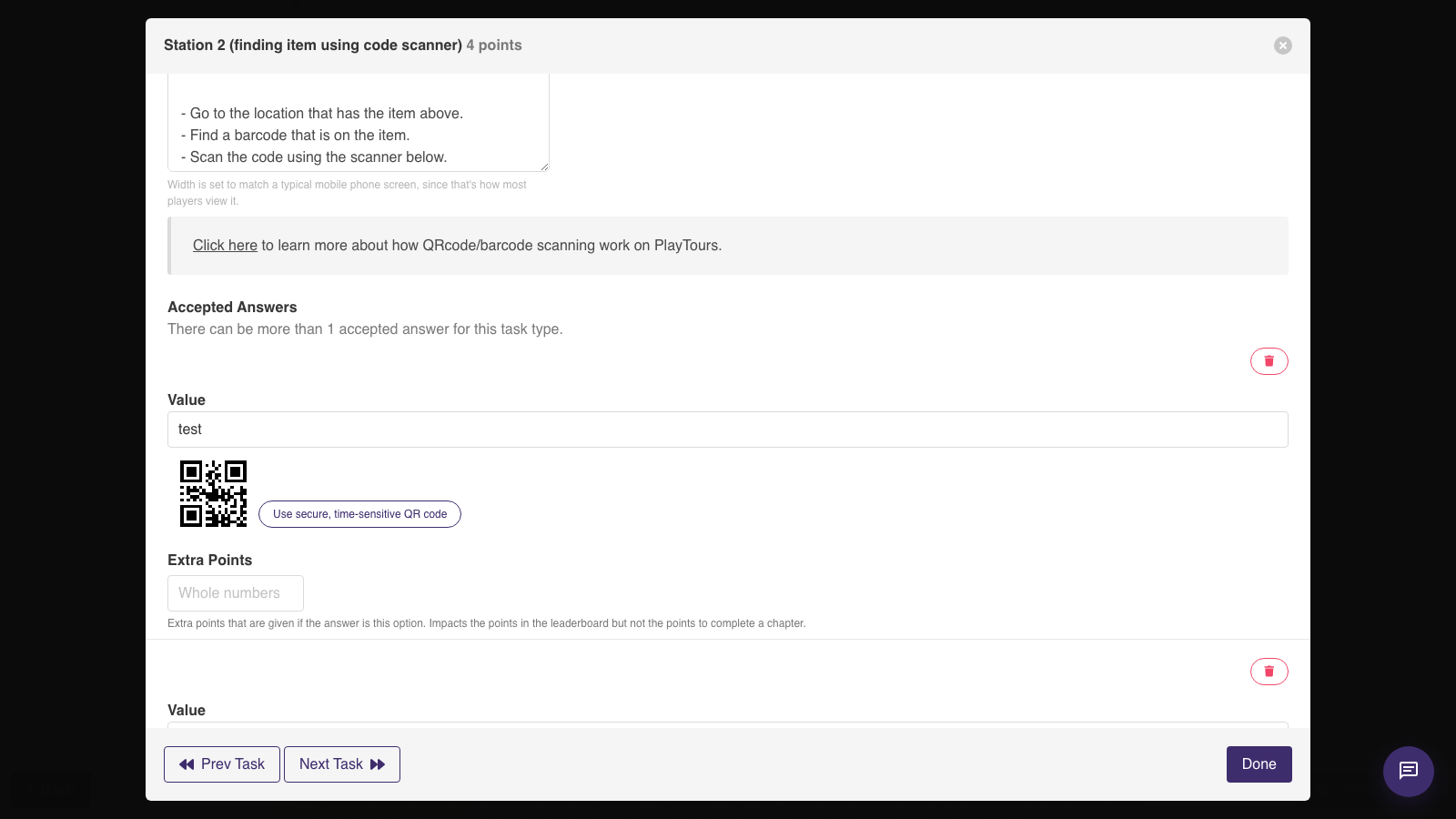
The join QR on the session page and these task QRs are different. The board code gets them into the hunt. A task QR is the answer they scan at a stop.
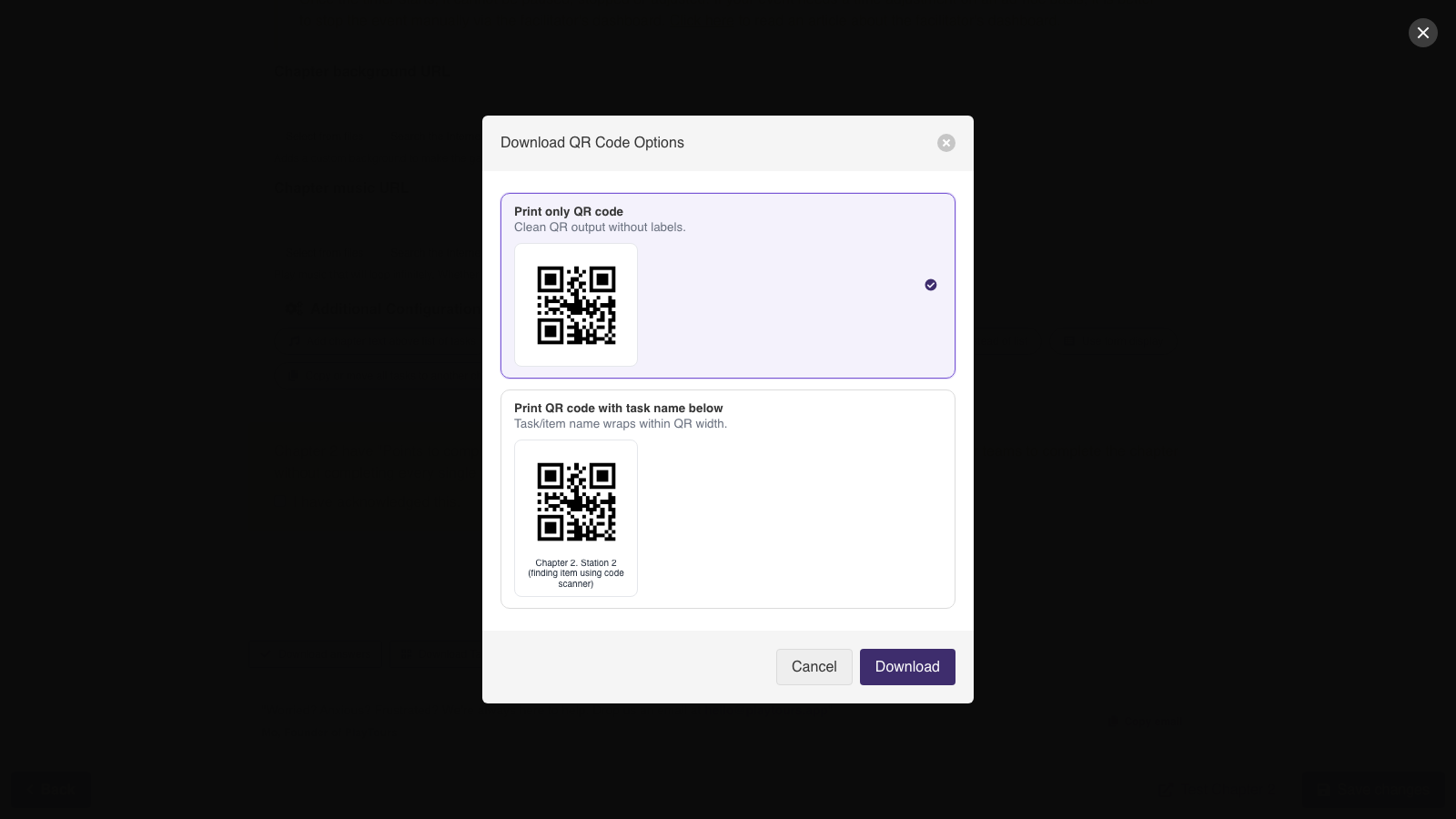
When the tasks are saved, click Download Tasks & Items QR Codes. Choose Print only QR code, or Print QR code with task name below. The labelled preview here reads "Chapter 2, Station 2 (finding item using code scanner)". Use that one when several codes are going up, so a fallen code goes back on the right desk.
Test the board code from the back row on your own phone before the class comes in. If the camera cannot read it, print it larger.
Step 4: Students scan and play in the browser
They point the camera at the board code, or they type the game code at pyts.link. The hunt opens. Nothing to install, and no student account. You can run that as a free scavenger hunt app for teachers: the class joins from the code, answers at each stop, and you stay at the front.
Step 5: Watch the class from the facilitator dashboard
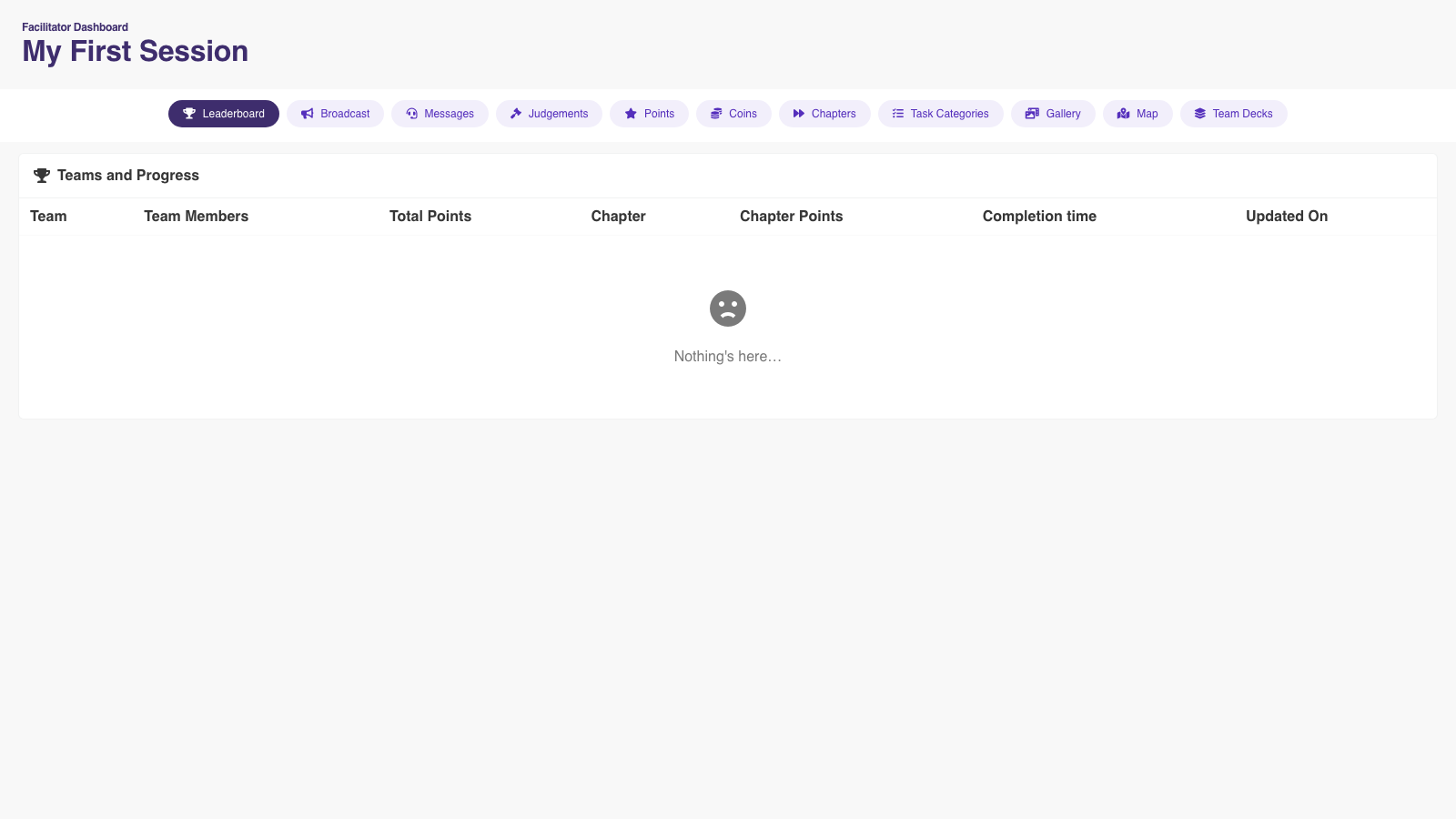
On the session, For Organizers / Facilitators lists Live Leaderboard, Message Players, and Make Judgements for Photos & Videos. The dashboard itself has Leaderboard, Broadcast, Messages, Judgements, Points, Gallery, Map, and Team Decks. Share that link with yourself, not with the class. The Leaderboard & Results tab on the session also has Download results and Download leaderboard, for the mark book after the bell.
If a photo has to match the question, check it under Judgements before the points count.
10 QR code scavenger hunt ideas for the classroom
- Vocabulary match. A Qrbarcode stop on the word wall. The value is the word. The task text asks for the definition.
- Maths problem trail. Each desk is one step. The last value is the final number.
- Science observation. A code by the plant or the window asks what they can see. Add a photo task if you want to judge it.
- Library orientation. Codes on the catalogue desk, the returns shelf, and the quiet sign. No location check-in.
- First-day classroom tour. Spare pencils, bag hooks, fire-drill door. No grade.
- History timeline. Codes along a taped line. Each value is a date already on the paper.
- Grammar repair. One wrong sentence under the code. They type the fixed line as a Text task beside it.
- Map reading in the room. A printed floor plan and three Qrbarcode stops about direction and scale.
- Art look-closely. A code under a print asks for one colour and one shape.
- Reading-corner check. A code in the book box asks for a title and one sentence they would read aloud.
Tips to avoid the common problems
GPS is weak indoors. The sample chapter says you must stand inside the station radius, and those stations are in New York. Use the Qrbarcode task on the desk instead.
Some students will not have a phone. Plan pairs first. One shared phone is one device.
On the free plan the cap is 25 devices at once. A new account's dashboard shows that 25. A bigger class shares phones, or the second half starts after the first half finishes.
Tell them where to sit when they finish, or the fast group will invent a second lap.
Put one code on the board
Write the objective, open a session, and download the join QR before the class comes in. Hang that code. Hand the task QRs from Download Tasks & Items QR Codes. When you want the free class-sized plan and the browser join in one place, use a free scavenger hunt app for teachers.