
Poker runs are a staple of charity rides, motorcycle rallies, and community festivals: visit checkpoints, draw a card at each stop, and the best hand wins. Until recently, running one digitally meant spreadsheets, manual card tracking, or awkward workarounds inside generic scavenger hunt apps. PlayTours is the only scavenger hunt app and event gamification platform we know of with native, built-in poker run support — random card draws on task completion, a live deck for players, and a facilitator dashboard that ranks every team's hand in real time.
This guide explains what the Poker Run feature is, how it differs from DIY setups, and how to configure, run, and score a poker run from start to finish. You can add screenshots between sections in the editor when you are ready.
What is a poker run?
In the real world, a poker run sends participants to a series of checkpoints. At each stop they draw one playing card. When the route is finished, whoever holds the best five-card poker hand wins — or, in many charity formats, the most cards collected earns a prize.
PlayTours brings that format into scavenger hunts, event gamification, and GPS walking tours. Checkpoints are tasks in your game. Completing a task can award a random virtual playing card to the team's deck. Organisers monitor every team's cards on the Team Decks tab in the Facilitator Dashboard and export results to Excel when it is time to announce winners.
Why PlayTours is different from other scavenger hunt apps
Most scavenger hunt and event gamification apps focus on points, photos, and GPS check-ins. If you want a poker run today, you typically have to:
- Track cards manually on paper or in a spreadsheet
- Assign random numbers in task briefings and score by hand
- Use inventory items or custom fields as a clumsy stand-in for cards
PlayTours treats poker runs as a first-class game mechanic, not a hack:
- Per-task toggle — enable "Award random poker card upon completion" on any checkpoint
- Automatic random draws — standard 52-card deck (four suits, thirteen ranks), independent draws each time
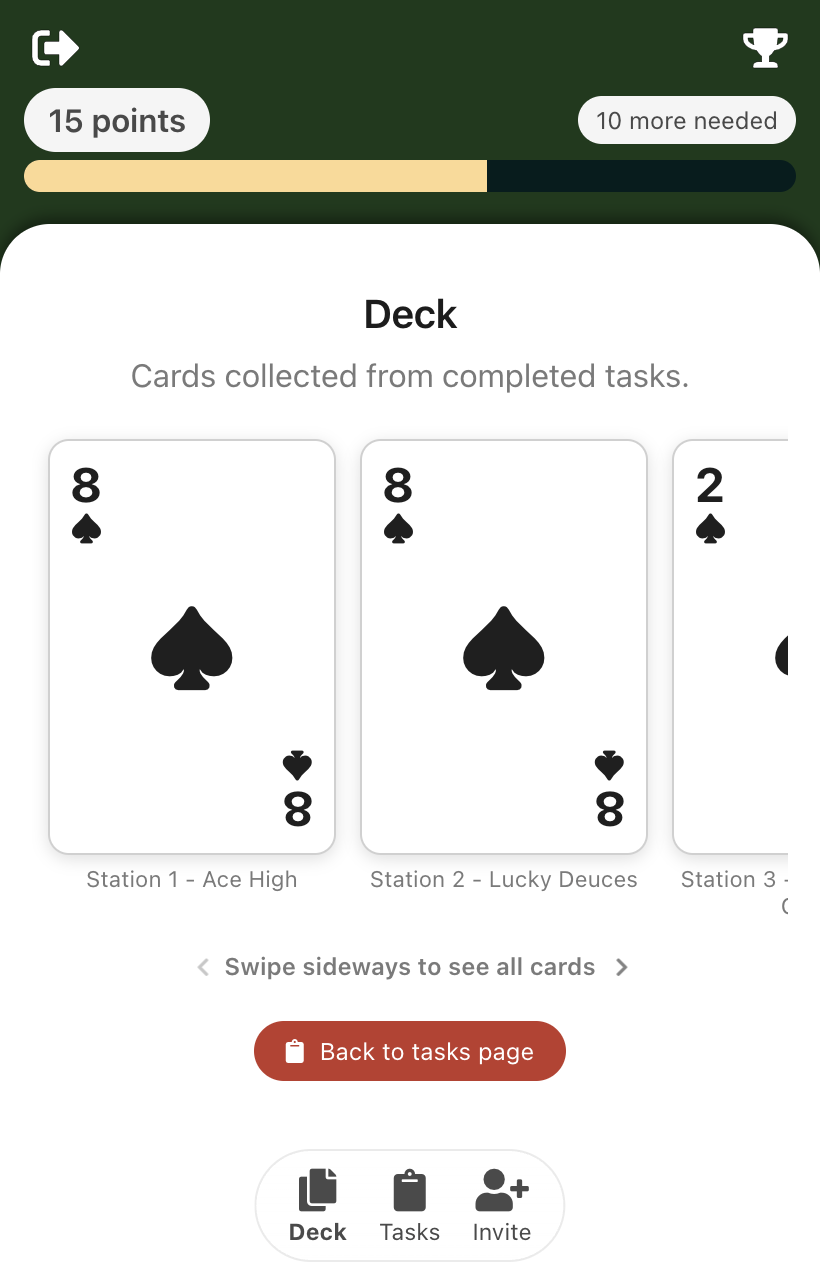
- Player Deck view — teams see their collected cards in the mobile player app, with the task name under each card
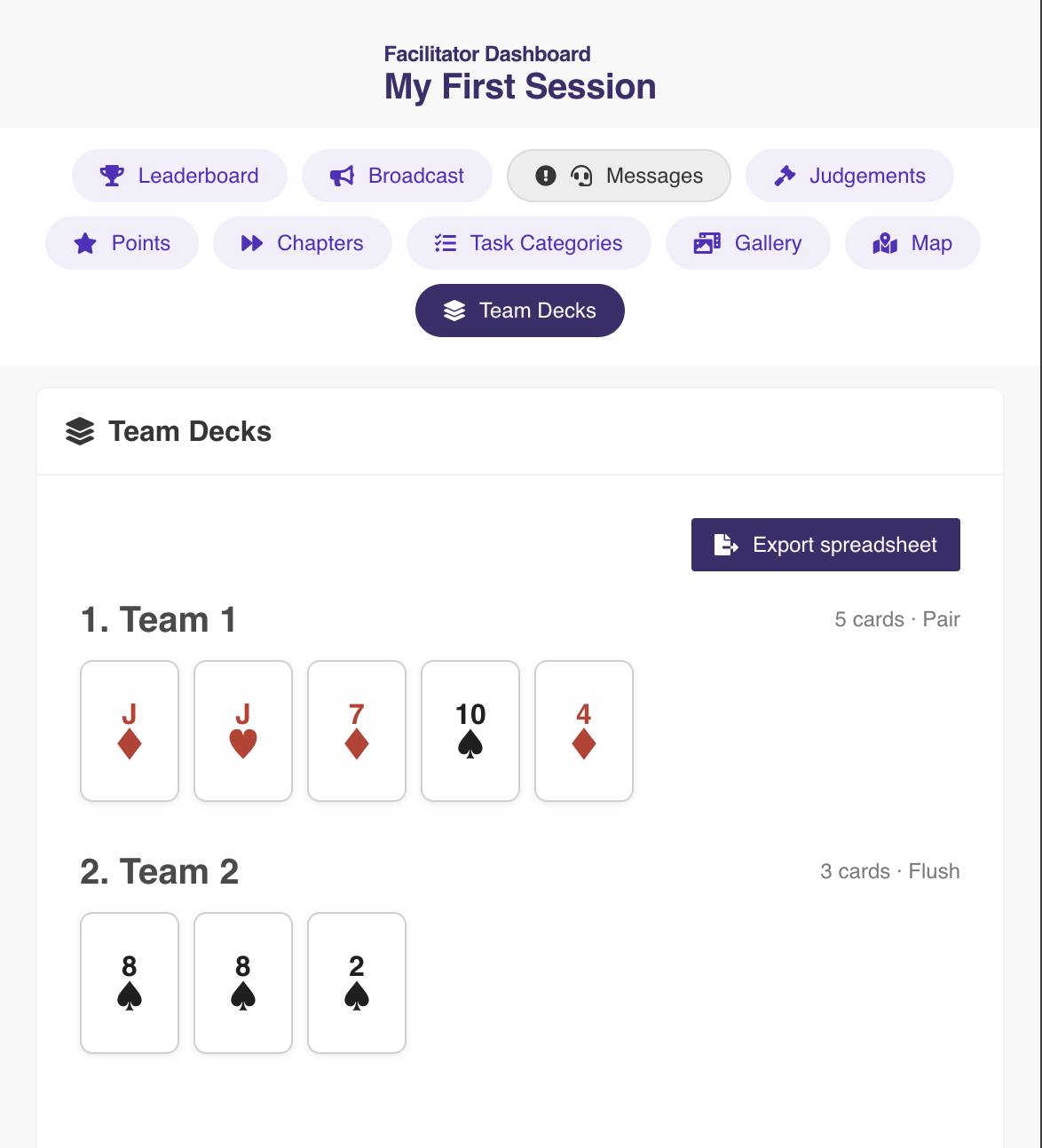
- Live Team Decks tab — facilitators see all teams ranked by card count and poker hand strength
- One-click export — download an .xlsx spreadsheet for announcements, archives, or sponsors
We are not aware of another major scavenger hunt app or event gamification platform that offers this end-to-end flow out of the box. If you are comparing tools for a poker-run-style activation, this is the feature to look for.
How the Poker Run feature works
At a high level:
- You enable poker card awards on selected tasks in the PlayTours game builder.
- Teams complete those tasks in the browser-based player app (no download required).
- On each valid completion, the backend awards one random card to the team's deck.
- Players open the Deck button in the bottom navigation to view their hand.
- Organisers open the Facilitator Dashboard and switch to Team Decks to see live rankings.
- At the end, export the spreadsheet and announce winners.
Important design choices built into the feature:
- No shared deck — every draw is independent; the same card can appear twice for one team or across teams.
- Per-task opt-in — there is no single global switch; you choose which checkpoints award cards.
- Separate from points — poker ranking on Team Decks is independent of the main points leaderboard.
- Cards never award on skip — only genuine successful completions count (including facilitator-approved photo or text tasks).
Step-by-step: set up a poker run (game designer)
Configure your game before the event in admin.playtours.app.
1. Create or open your game
Build a scavenger hunt, walking tour, or event game as you normally would — chapters (sections), tasks (stops), welcome message, and session settings.
2. Enable poker cards on each checkpoint
For every task that should draw a card:
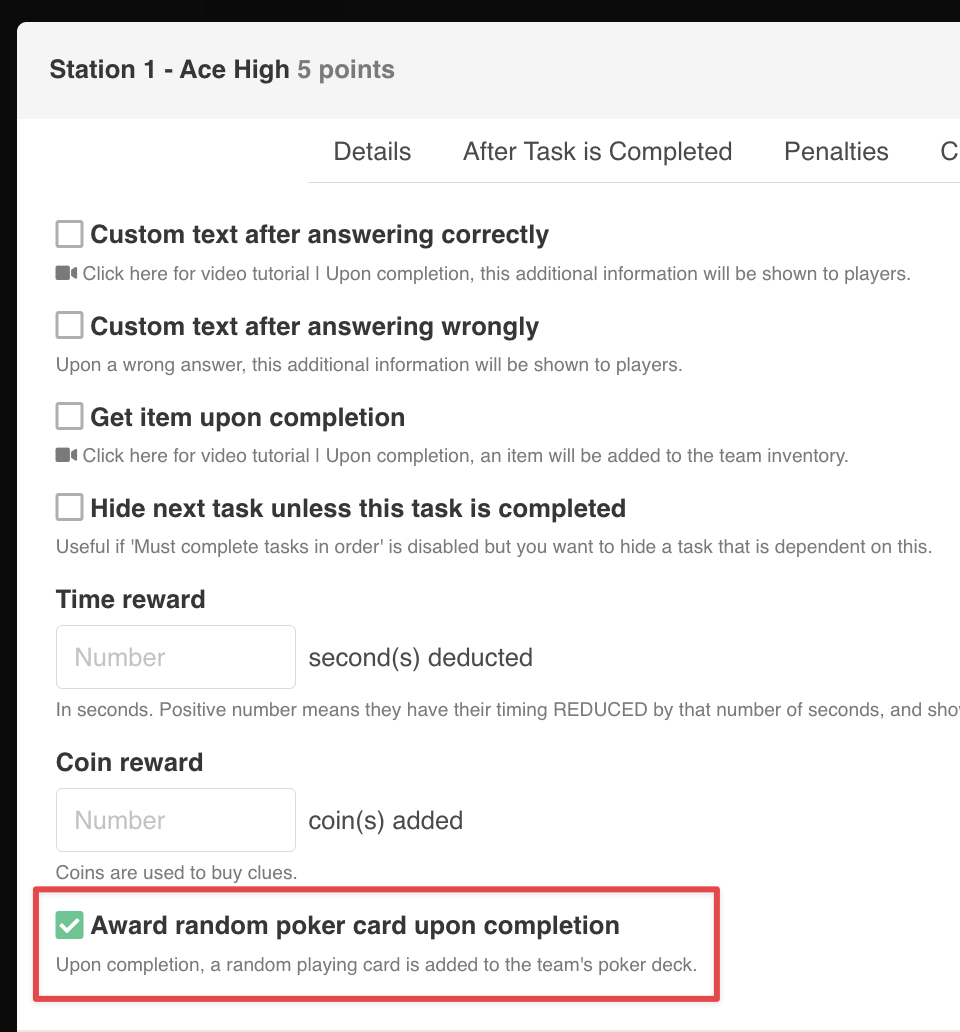
- Open the task and click Edit.
- Go to the After Task is Completed tab.
- Turn on Award random poker card upon completion.
- Save the task.
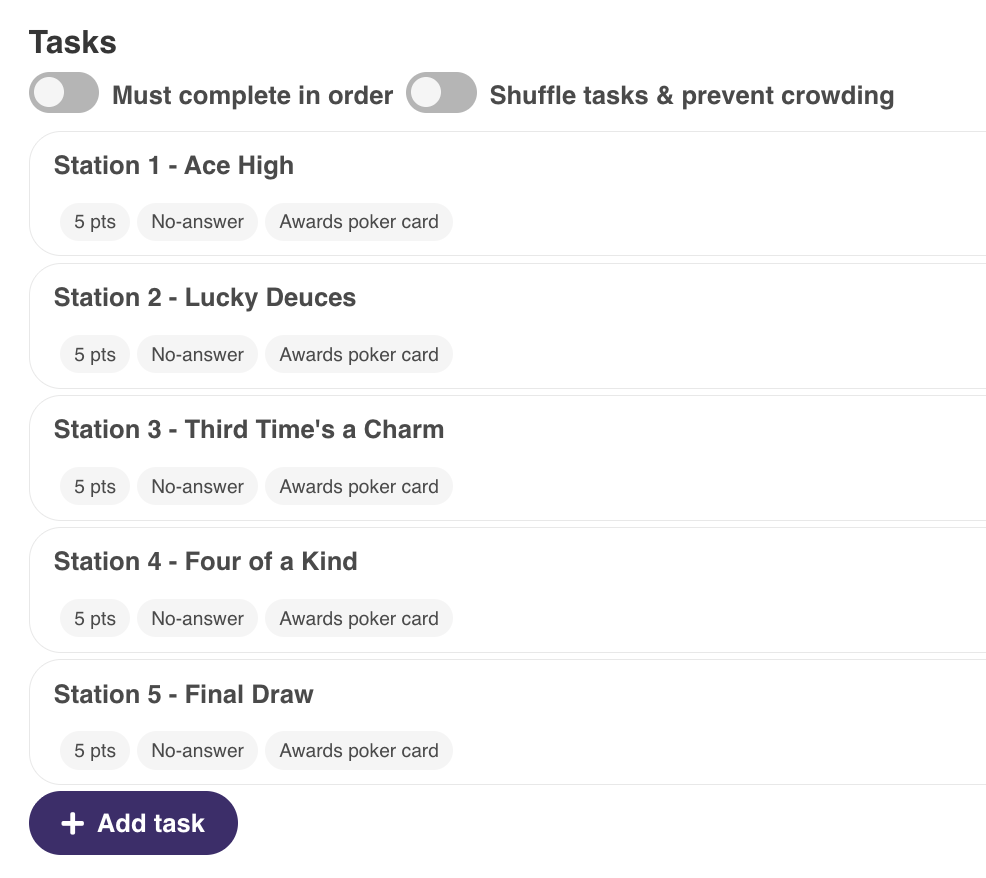
The task list shows an Awards poker card tag on enabled tasks so you can review the route at a glance. New tasks default to off — you opt in checkpoint by checkpoint.
3. Write clear task briefings
Players do not see a special "poker card" badge on tasks in the player app. Mention in the briefing when a stop earns a card, e.g. "Complete this checkpoint to draw a playing card for your team's deck."
4. Choose your format
Common patterns:
- Dedicated poker run — enable the toggle on most or all tasks; best hand (or most cards) wins at the end.
- Hybrid game — only bonus checkpoints award cards; the rest behave like a normal hunt.
- End-game reveal — teams collect cards throughout; you open Team Decks at the finish to announce winners.
5. Save, publish, and create a session
Save the game, create a session, and share team codes or QR links as usual. Test at least one poker-enabled task on your phone before go-live.
Step-by-step: play a poker run (participants)
Teams join through the normal PlayTours player link — no app store visit required.
- Join the game with your team name and code.
- Complete tasks that your organiser marked as poker checkpoints — answer correctly, check in at GPS stops, or get facilitator approval on photo tasks.
- Watch for the Deck button — it appears in the bottom navigation after your team collects its first card. A red notification badge flashes when a new card arrives while you are on another screen.
- Open Deck to see your cards displayed as playing cards (red for hearts and diamonds, black for clubs and spades). Each card shows the task name underneath.
- Swipe sideways when you have two or more cards to scroll through your full hand.
- Keep playing — every valid completion at a poker-enabled task adds one more random card.
Players do not see other teams' decks or a "you have Two Pair" label on their phone — that is intentional. The reveal stays with the organiser.
Step-by-step: run the event (organiser / facilitator)
During the live session, use the Facilitator Dashboard — the same hub you may already use for photo judgements, broadcasts, and the points leaderboard.
- Open the Facilitator Dashboard for your session (facilitator link from the session screen).
- Click the Team Decks tab in the top bar.
- Watch teams appear as they collect cards. Each row shows team name, card count, best hand label (e.g. Two pair), and a visual grid of every card held.
- When you are ready to announce winners, read the ranking from Team Decks or export the spreadsheet (see below).
There is no automatic "winner" screen for players — you control the reveal from Team Decks or your export file.
How teams are ranked on Team Decks
Rankings update automatically as cards are awarded:
- Primary sort: number of cards — a team with six cards always ranks above a team with five, even if the five-card team has a stronger poker hand.
- Secondary sort: poker hand strength — among teams with the same card count, standard poker rules apply (royal flush down to high card).
- Best five from a larger hand — if a team holds more than five cards, the system evaluates their best possible five-card combination.
Design your route with this in mind: more checkpoints mean more cards, which usually means clearer separation on the leaderboard.
Export poker run results
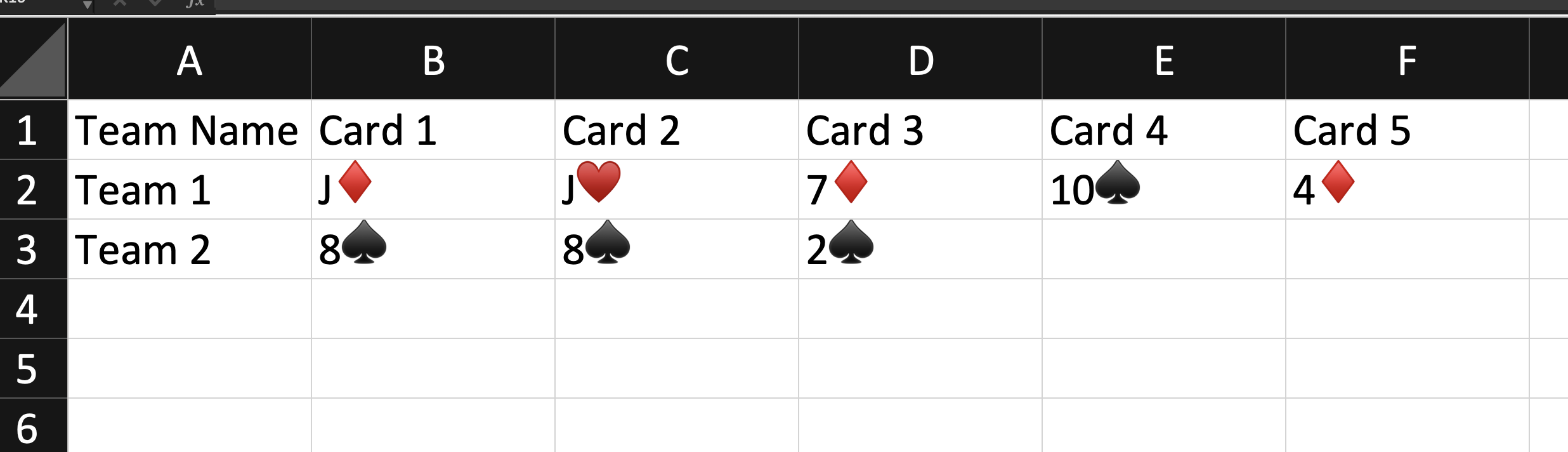
On the Team Decks tab, when at least one team has cards, click Export spreadsheet (top right). PlayTours downloads an Excel file (.xlsx) with:
- Team name and team code
- One column per card slot (Card 1, Card 2, … up to the maximum any team collected)
- Cards formatted as rank + suit symbol (e.g. A♥, 10♠, K♦)
- Rows sorted in the same order as the Team Decks tab
Use the export for winner announcements, post-event archives, sponsor reports, or importing into other tools.
When cards are awarded (and when they are not)
A card is awarded only on successful completion of a task with the poker toggle enabled.
Cards are awarded when:
- The team submits a correct answer
- The team taps complete on a no-answer task (acknowledge / mark complete)
- A facilitator approves a judged task (photo, text, or video)
Cards are not awarded when:
- The team skips or gives up on the task
- The answer is wrong (or max tries exceeded and the task is skipped)
- The task does not have the poker toggle enabled
Each valid completion awards exactly one card. A task can also award inventory items, coins, or time rewards at the same time — poker cards are additive.
Poker run event ideas
Native poker run support opens formats that are hard to run well on generic platforms:
- Charity motorcycle or cycling poker run — GPS checkpoints along a route; best hand wins a raffle prize
- Corporate team-building scavenger hunt — departments compete for most cards and best hand; export for HR wrap-up
- Festival or trade-show activation — visit sponsor booths (QR or GPS tasks), collect cards, reveal winners on the main stage via Team Decks
- Campus or city exploration — hybrid hunt where only "bonus" landmarks award cards
- Fundraising gala add-on — evening scavenger hunt with a dramatic deck reveal at dinner
Because PlayTours runs in the browser, one-off visitors and tourists can join without installing an app — critical for public poker runs.
Frequently asked questions
Can the same card appear twice?
Yes. Every draw is independent. There is no shared shoe that runs out of cards.
Do skipped tasks still give a card?
No. Skipping never awards a poker card, even if the toggle is on for that task.
Do players see who is winning?
Not in the player app. Only organisers see all teams on the Team Decks tab.
How many tasks should award cards?
Your choice. More poker-enabled tasks mean more cards per team and clearer ranking by card count. Five or more poker stops is a common minimum if you want meaningful hand comparisons.
Does a team need exactly five cards?
No. Teams can hold any number of cards. Ranking uses the best five-card hand when comparing hand strength, but more total cards always beats fewer regardless of hand quality.
Is poker run separate from the points leaderboard?
Yes. A team can lead on points but rank lower on Team Decks, and vice versa.
Can I combine poker run with other PlayTours features?
Yes — GPS stops, photo tasks, story mode, shuffle, facilitator judgements, and inventory items all work alongside poker cards.
Conclusion
If you have ever tried to run a poker run on a generic scavenger hunt or event app, you know the pain: manual scoring, lost cards, and no live view of who is winning. PlayTours builds the full loop — random draws on completion, a deck for every team, live facilitator rankings, and spreadsheet export — into the platform itself.
That makes PlayTours the practical choice when poker run is part of your format, not an afterthought. Whether you are planning a charity ride, a corporate offsite, or a festival game, you can configure checkpoints in the builder, run the session on the day, and announce winners from Team Decks in minutes.
Ready to try it? Sign up free at admin.playtours.app (25 concurrent devices, full features, commercial use allowed) or open QuickBuild to draft a route and add poker cards to your tasks.